Now Company Pricing Get Started
Menu

Changelog

What we shipped

New features, improvements, and fixes — published straight from main.

  1. Insights

    Track Paid Ads From Meta and TikTok

    Connect your Meta and TikTok ad accounts to see how your paid campaigns are performing without leaving ContentCrew. The new Ads Insights area gives you spend, ROAS, conversions, and your biggest movers at a glance, plus drill-downs into each campaign and ad with creative previews, daily trends, and audience details. Helpful tooltips explain metrics like ROAS and CTR, and clear status messages tell you when a platform is still syncing or an ad was rejected.

  2. App

    Redesigned What's New With Reactions and Comments

    The What's New screen got a fresh look with filter chips, a timeline view, and quick jump-to-month navigation. You can now tap the fire reaction on any update and leave comments to share what you think — we read every one.

  3. Pages

    Pages for Shoot Plans and Crew Notes

    Capture shoot plans, meeting notes, and other long-form docs in the new Pages tab. Start from a template or a blank page, format with rich text and checklists, and everything autosaves and stays in sync for your whole crew.

  4. Publishing

    Sharper Video Quality When Publishing

    Your videos now publish at full quality. We send a high-resolution version straight to Instagram and other platforms, so your Reels and posts look crisp instead of soft.

  5. Publishing

    Faster Publish Now

    When you tap Publish Now, your post heads out to your social platforms right away instead of waiting around for a few minutes first. Scheduled posts still go out at the time you picked.

  6. Drafts

    Drafts Update Themselves When Videos Finish Processing

    Your draft now switches from "Processing video" to the playable video on its own as soon as it's ready — no more manual refresh. Upload status also reads more clearly with simple "Preparing", "Uploading", and "Finishing up" labels.

  7. Drafts

    Smoother Video Uploads

    Uploading videos to drafts on the web is now noticeably faster, and you'll see a clear "Processing video" indicator while the upload finishes. Once it's ready, your draft updates on its own with the optimized version.

  8. Drafts

    Reliable Publishing for High-Resolution Videos

    Uploading a 4K or otherwise oversized video to a draft on the web no longer breaks publishing. We now optimize the video in the background and show a clear "Video is still being processed" state, then let you publish as soon as it's ready.

  9. Campaigns

    Refreshed Create Campaign Screen

    Creating a campaign now uses a cleaner, more polished layout that matches the rest of the app. You'll also see a clearer action bar at the bottom with Cancel, Save as draft, and Create campaign buttons, so it's easier to step away without losing your work.

  10. AI

    Ask AI From Anywhere on the Web

    Have a question or need a quick draft? Click the new Ask AI pill in the bottom-right of any desktop screen to chat with an assistant that already knows your brand voice, topics, and goals. Great for spinning up captions, brainstorming angles, or getting fast answers without leaving what you're doing.

  11. App

    Refreshed Login, Campaigns, and Media Library

    A fresh look across login, campaign detail, and the Media Library. Sign in on a cleaner split-card layout, navigate campaigns with a clearer header that highlights what's pending and a status filter for contributors, and browse Media Library with a new sidebar of smart collections and sources plus a tile or list view. A consistent back chevron now appears throughout the app.

  12. App

    Refreshed Home Screen and Sidebar

    Your home screen and sidebar got a fresh look. The home screen now greets you with a daily brief, quick stats, your weekly calendar, active campaigns, and your ideas and tasks all in one place. The sidebar is cleaner with a crew switcher and a command palette you can open from anywhere with ⌘K.

  13. Media

    Reliable Multi-File Downloads From Your Media Library

    Selecting multiple files in your Media Library now downloads them as a single zip archive, so you actually get every file you picked instead of just one. Single-file downloads still come through as the original file, no zip wrapper.

  14. Media

    Download Multiple Files From the Media Library

    Need to grab a batch of files at once? Turn on Select mode in the Media Library on the web to pick multiple files and download the originals in one go. Files arrive with clear, dated names so they're easy to find later.

  15. Insights

    Clearer Views Trend Chart

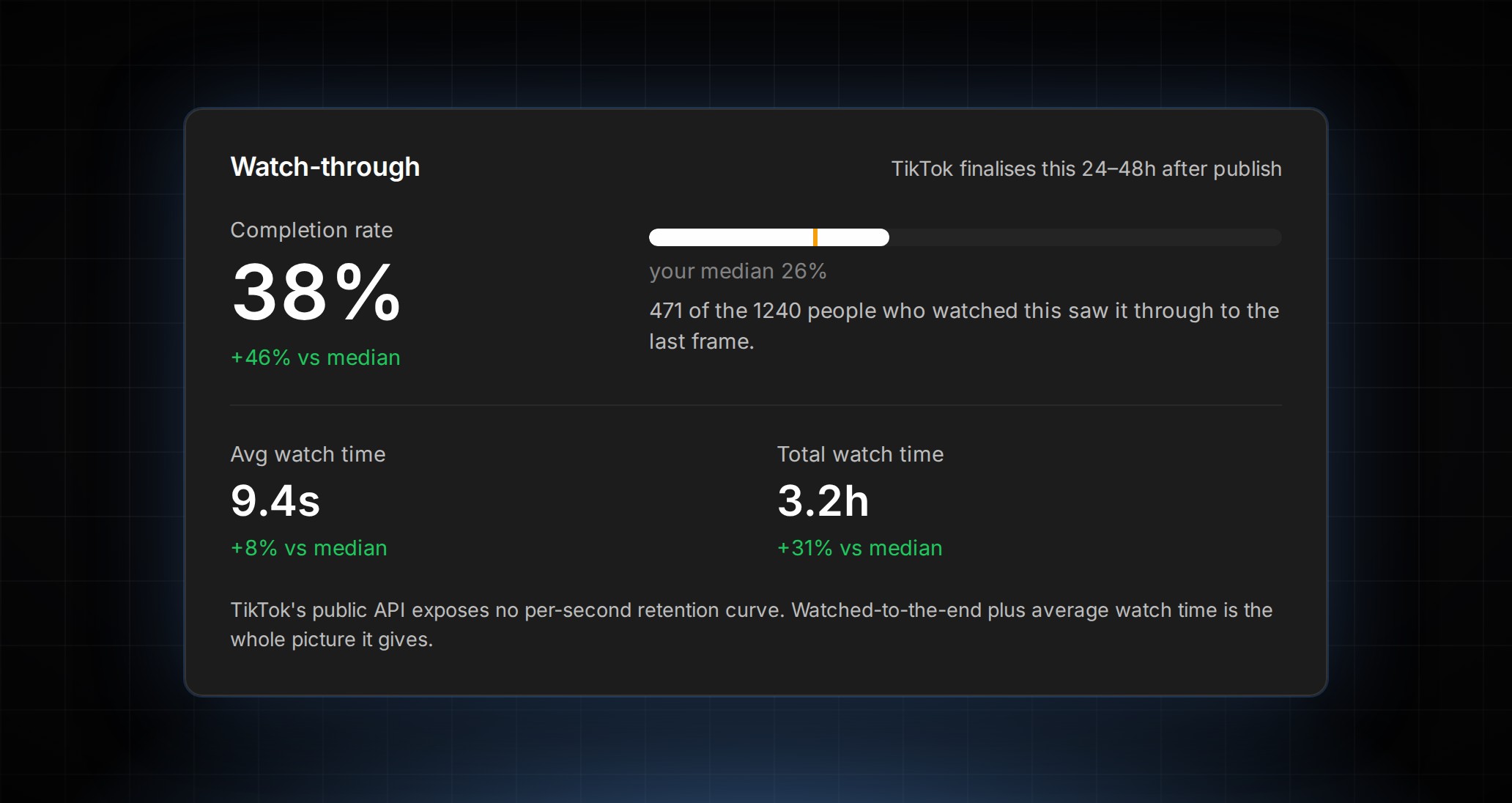
    Your views chart now shows the real date range, lets you tap any point to see the exact view count for that day, and zooms in so subtle changes in your trend are easy to spot. We also cleaned up duplicate snapshots so your totals stay accurate.

  16. Insights

    30-Day Views Chart on Insights

    See your account views at a glance with a new 30-day trend chart on the Insights screen. It sums views across all your connected accounts, with clean date labels and rounded numbers so it's easy to read.

  17. Publishing

    Schedule Posts to the Exact Time of Day

    Pick the exact hour your posts go out, not just the day. The Edit Schedule screen now has a time-of-day picker, new schedules default to 9:00 AM, and rescheduling from the calendar keeps the time you already set.

  18. Insights

    A Cleaner Analytics View

    Your analytics page now leads with the charts that matter most. Platform Comparison and Engagement Breakdown are tucked away by default — tap "Show all graphs" at the bottom whenever you want the full picture.

  19. Publishing

    Schedule and Publish to Social Platforms

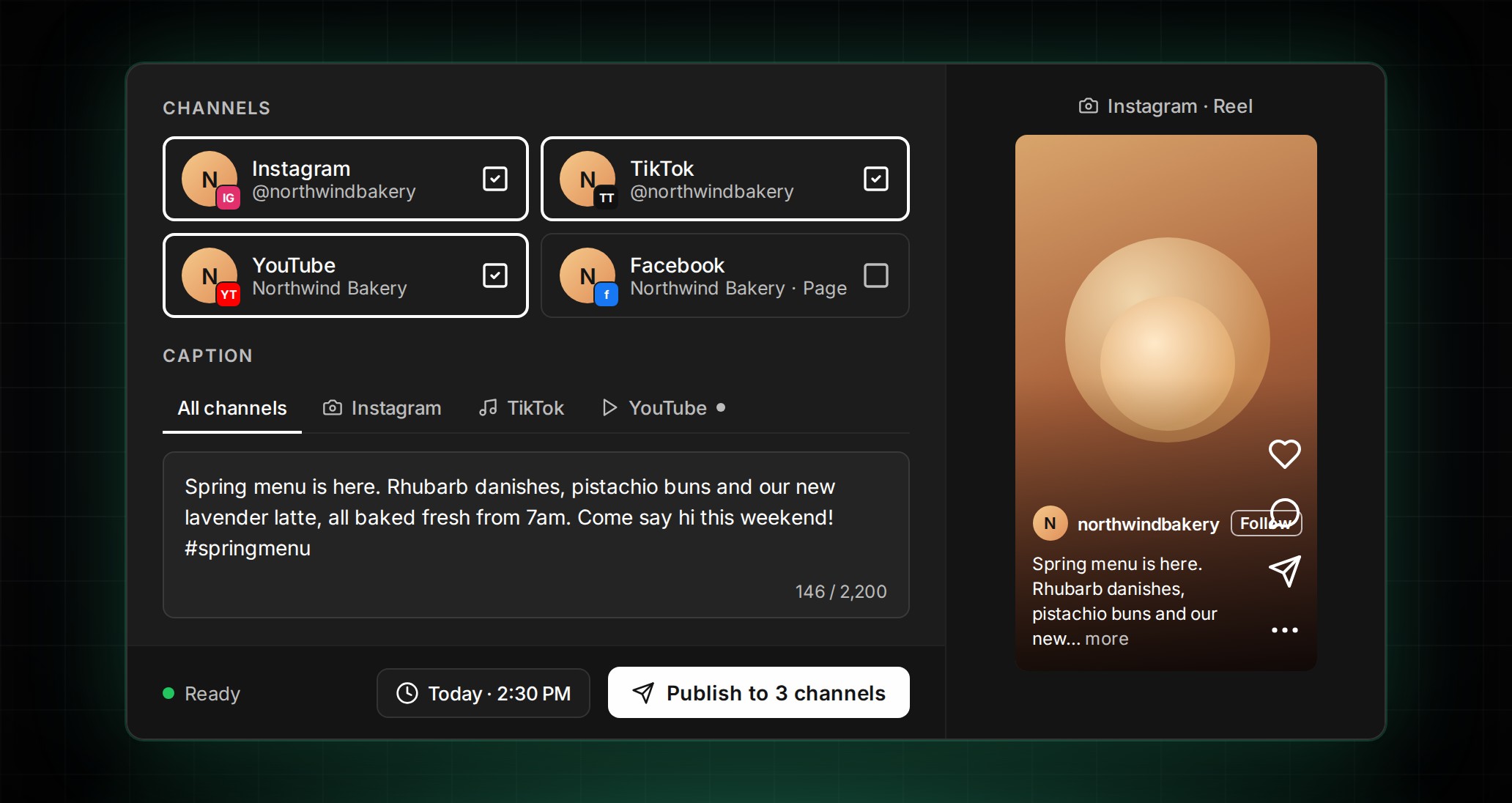
    Add content to your calendar, pick the platforms you want to post to, and let ContentCrew schedule and publish straight to your social accounts. You'll see a live status badge so you know when posts are queued, publishing, or live.

  20. Campaigns

    A Sharper Campaign Detail Screen

    Campaign Detail now opens with a review cockpit showing pending, approved, and declined counts, plus a one-tap jump to the next clip waiting on you. Pending clips stand out with larger thumbnails while approved and declined ones quietly recede, contributor sections show clear "5 clips · 2 approved" summaries, and Brief files, links, and videos are unified into a single tidy list. The Publish confirmation now spells out exactly who's about to see your brief.

  21. AI

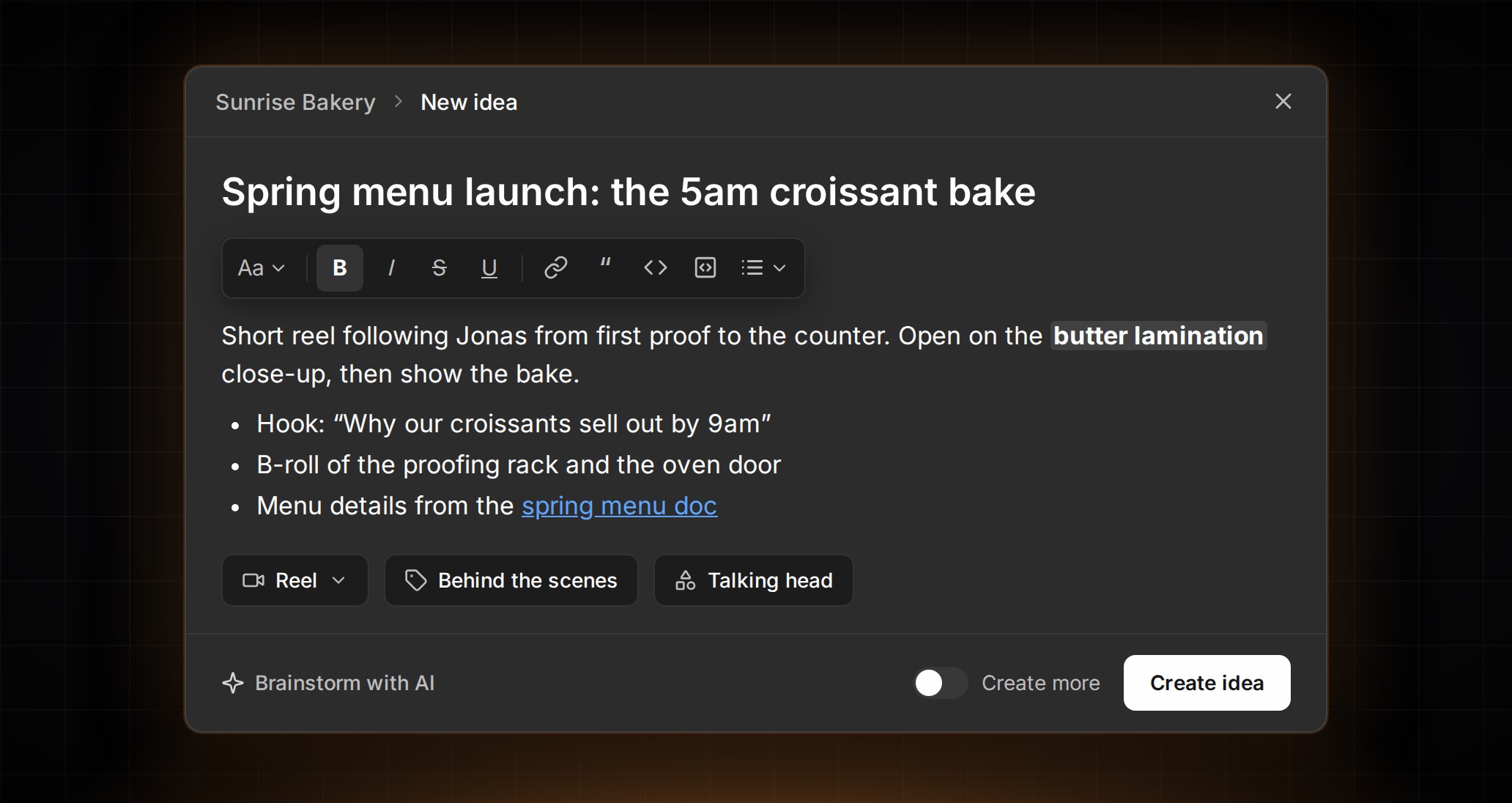
    Brainstorm New Ideas in One Tap

    Stuck on what to post next? Tap the brainstorm button when creating a new idea and we'll suggest five fresh content ideas based on your brand, topics, and goals. Add an optional prompt to steer the suggestions, then pick one to start your idea.

  22. Insights

    Cross-Platform Insights for All Your Social Accounts

    See how your content performs across Instagram, TikTok, YouTube, and Facebook all in one place. Connect your accounts in a couple of taps to get follower counts, engagement rates, your top posts, best day to post, posting consistency, follower growth, and per-post analytics — no more jumping between apps.

  23. AI

    Teach AI About Your Business From Your Website

    Want the AI to really understand your business? In AI Guidelines, switch to the new Business tab, paste your website URL, and we'll pull in details about your company, audience, competitors, and positioning. From then on, every AI suggestion takes that context into account alongside your brand voice.

  24. Campaigns

    More Reliable Contributor Video Uploads

    Uploading contributor videos on mobile web no longer freezes partway through. Videos now finish uploading reliably and you'll see a clear "Processing video" indicator while we get them ready to view.

  25. Campaigns

    Contributor Names in Chat

    Chats with contributors now show their actual name instead of a generic "Contributor" label, so it's easier to tell conversations apart. The chat list also got a small visual polish.

  26. App

    Easier Content Picker and Quick Actions on Home

    Adding content to your calendar is now easier to scan, with sections for Recent, Reels, Posts, and Stories, a "See all" view with search, and the right thumbnail shape for each format. The Home screen also gets a new "+" button that opens a quick actions menu so you can jump straight into creating something new.

  27. Campaigns

    Larger Campaign Uploads up to 200 MB

    Contributors can now upload bigger media files to your campaigns. We've doubled the upload limit to 200 MB, so longer videos and higher-quality clips fit without trouble.

  28. AI

    AI Caption and Hashtag Suggestions for Drafts

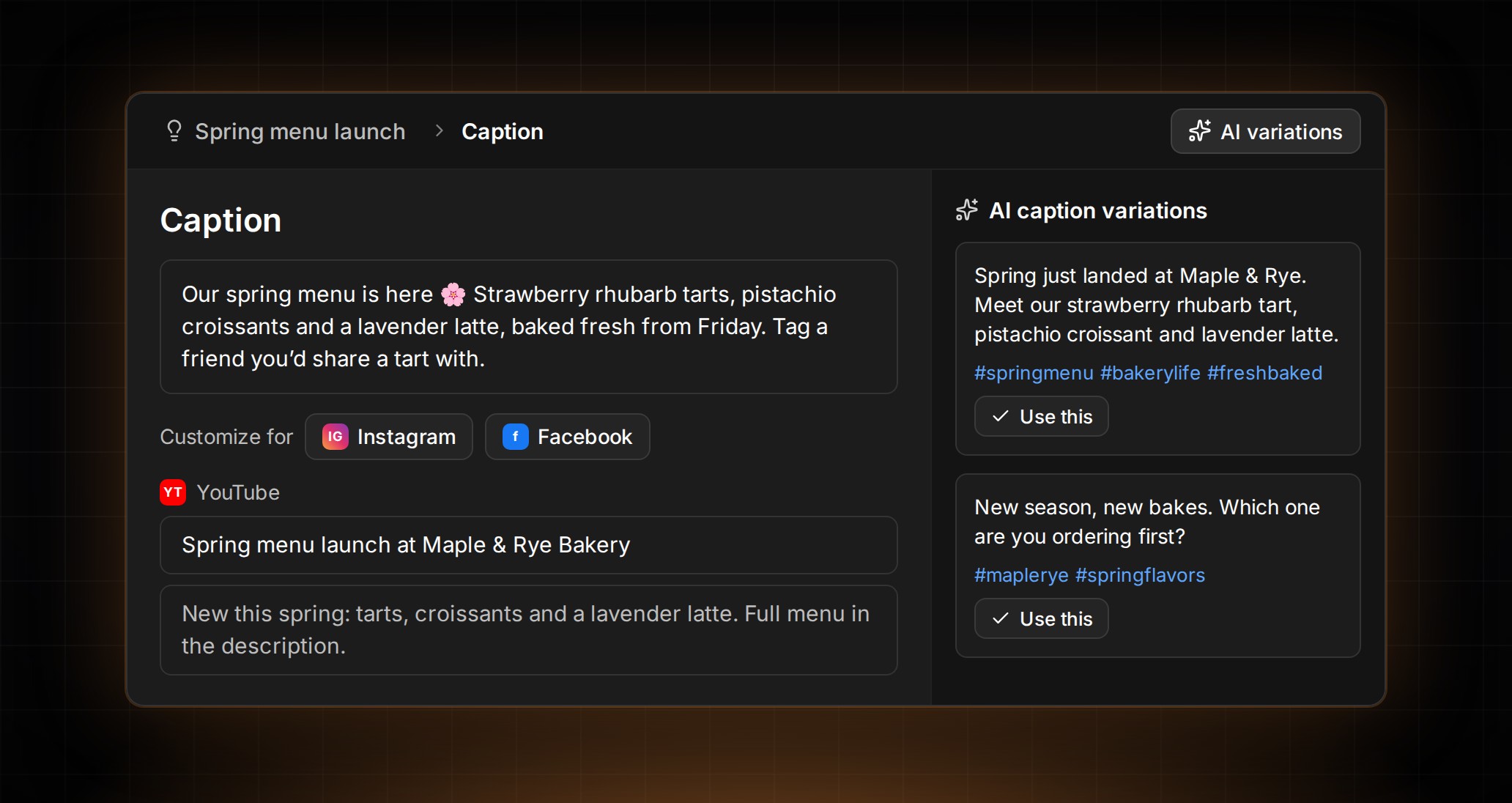
    Need help writing the perfect caption? Tap generate on any draft and we'll suggest six caption variations with hashtags, tailored to your post. Like the ones you love, tweak them inline, and delete the rest.

  29. AI

    Brainstorm Idea Variations With AI

    Need a few different angles on the same idea? Open the new variations sidebar while creating a post and generate eight fresh takes at a time, shaped by your brand. Like the ones you love, edit or sort them, and drop the winner straight into your idea.

  30. AI

    Generate Catchy Hooks for Your Scripts

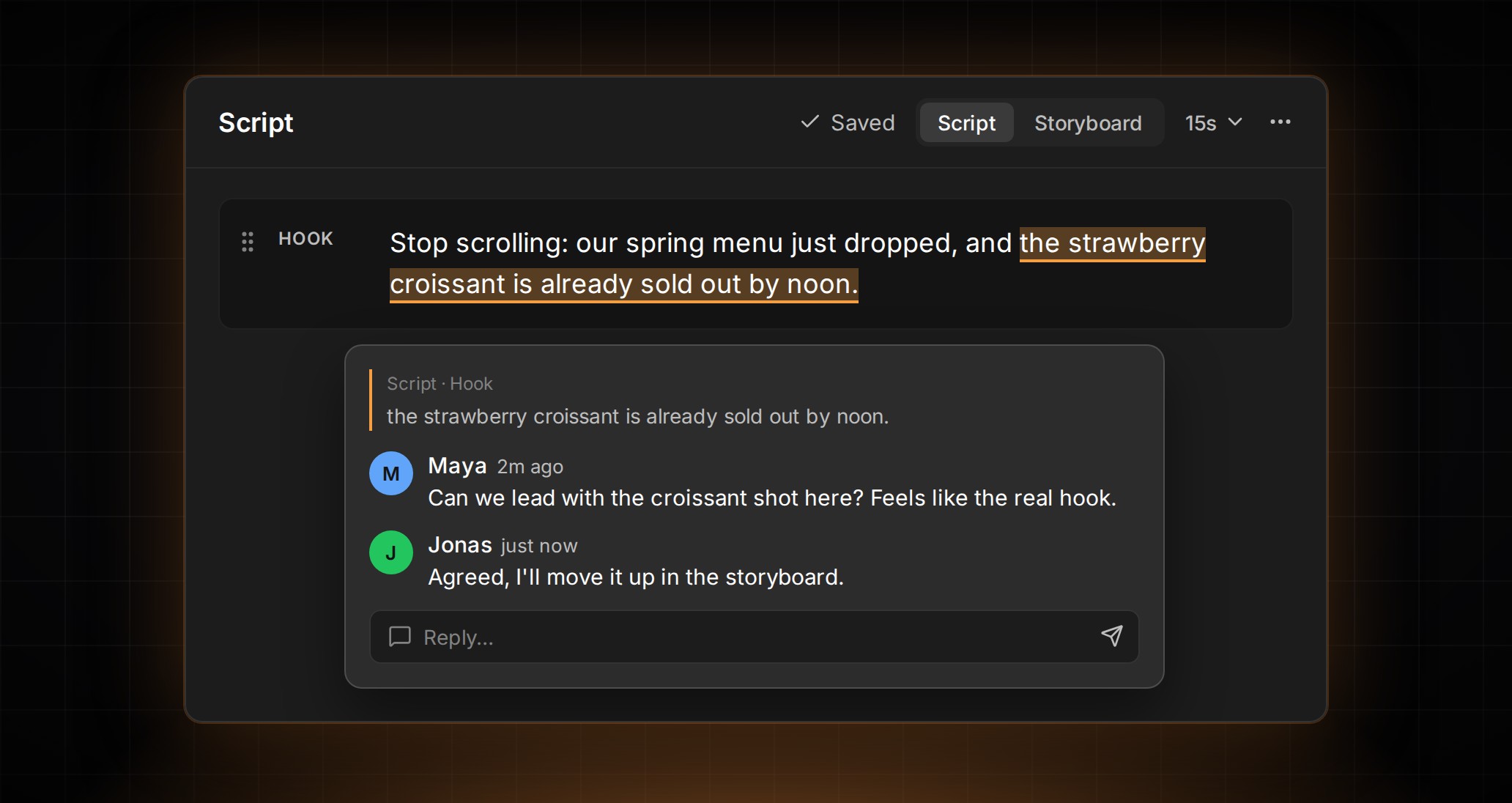
    Need a stronger opening line? Switch the script editor sidebar to Hook mode and we'll generate five hook variations to grab your audience from the first second. Tweak any hook or script variation right inline — tap the pencil to edit, then save when it sounds right.

  31. AI

    Generate Script Variations With AI

    Need a fresh take on your script? Open the new AI sidebar in the Script editor to generate three on-brand script drafts at a time. Heart the ones you love, delete the rest, and add custom instructions to steer follow-up generations — your variations stick around between saves and sessions.

  32. App

    Refreshed Campaigns, Crew, and Settings

    Campaigns, Crew, Settings, and the top nav got a design refresh. Campaign details now show contributors grouped with their media, with quick Upload, Edit, and Share actions right in the header. Cadence and frequency pickers are cleaner, and chat shows the right role names like Guest and Contributor.

  33. Campaigns

    Smoother Share Links for Reviews and Contributions

    Sharing content for review or contribution is now smoother. Create share links from one unified sheet, pick from clearer expiry options (including 90 days and 1 year, with 30 days as default), and share UGC media straight from its navbar. Links are also shorter and easier to send.

  34. App

    Smoother Crew Switching and a Friendlier Home

    Switching between crews now fully refreshes your view, so you'll never see leftover content from another crew. The Ideas section also stays on your Home screen even when it's empty, with a quick "Create idea..." button to get you started.

  35. App

    Quicker Task Adding and a Tidier Home Page

    Add tasks faster with a new inline "Add task" button right on your Home and Tasks pages — tap it to open the task creator without leaving the screen. Your Home page now shows your three most urgent tasks (yours first, then your crew's) with assignee avatars, and notifications move to the right sidebar on wider screens so everything is easier to scan.

  36. Campaigns

    More Powerful Share Links for Reviewers

    Share links now give outside reviewers and contributors the same full set of status options your crew uses, so they can mark drafts and campaign media with the exact stage they're at — not just approve or reject. Drafts shared via link now show a swipeable media carousel, your crew name and avatar appear on every share page, and first-time visitors are asked for their name so their comments and decisions are properly attributed.

  37. AI

    AI Guidelines for Your Brand

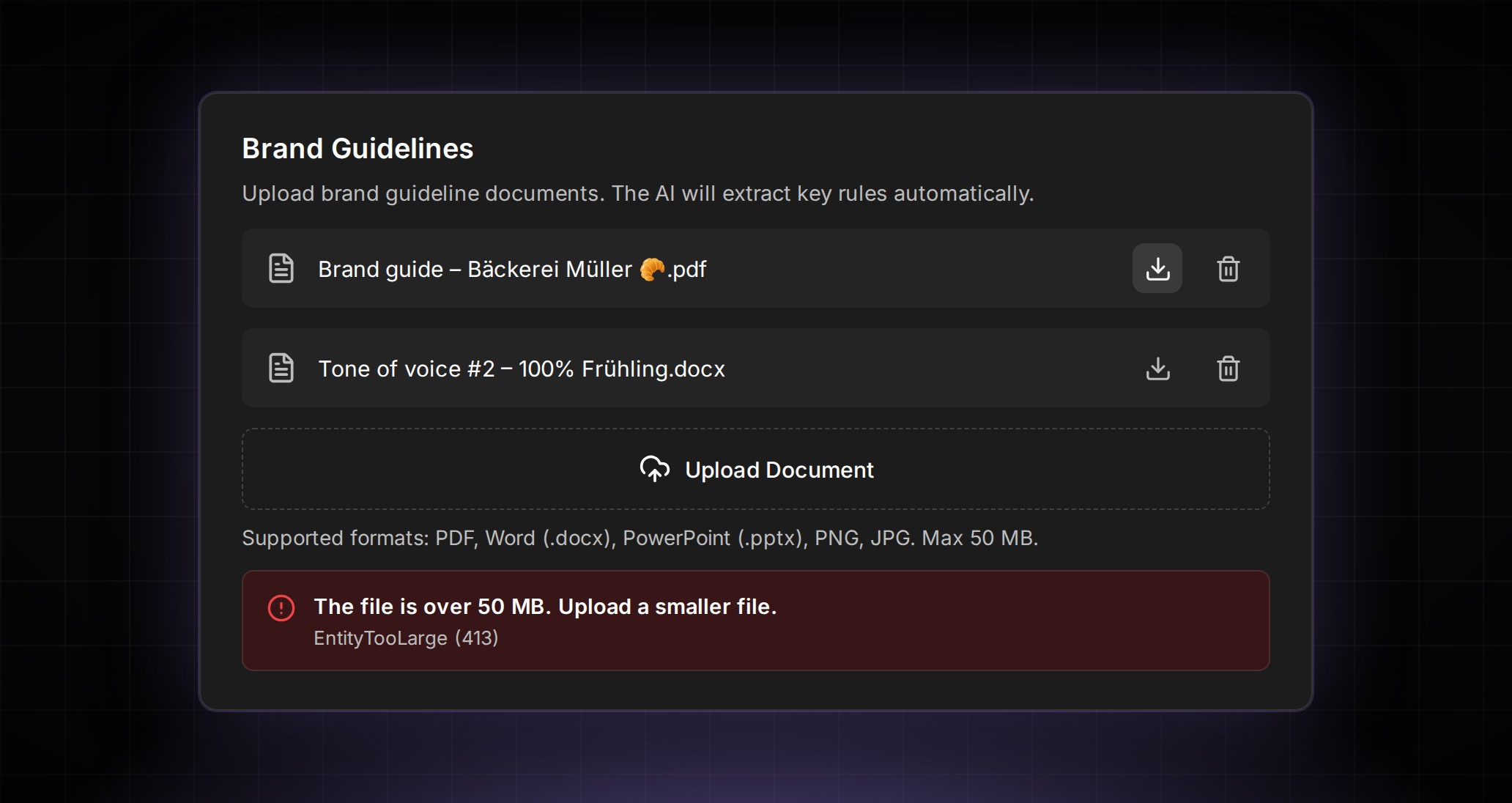
    Teach ContentCrew about your brand once and let AI use it everywhere. Open AI Guidelines in your crew settings to add custom instructions, upload brand documents (PDF, PPTX, or DOCX), and manage the brand rules we extract from them — so future AI suggestions sound like you.

  38. App

    A New Home for All Your Tasks

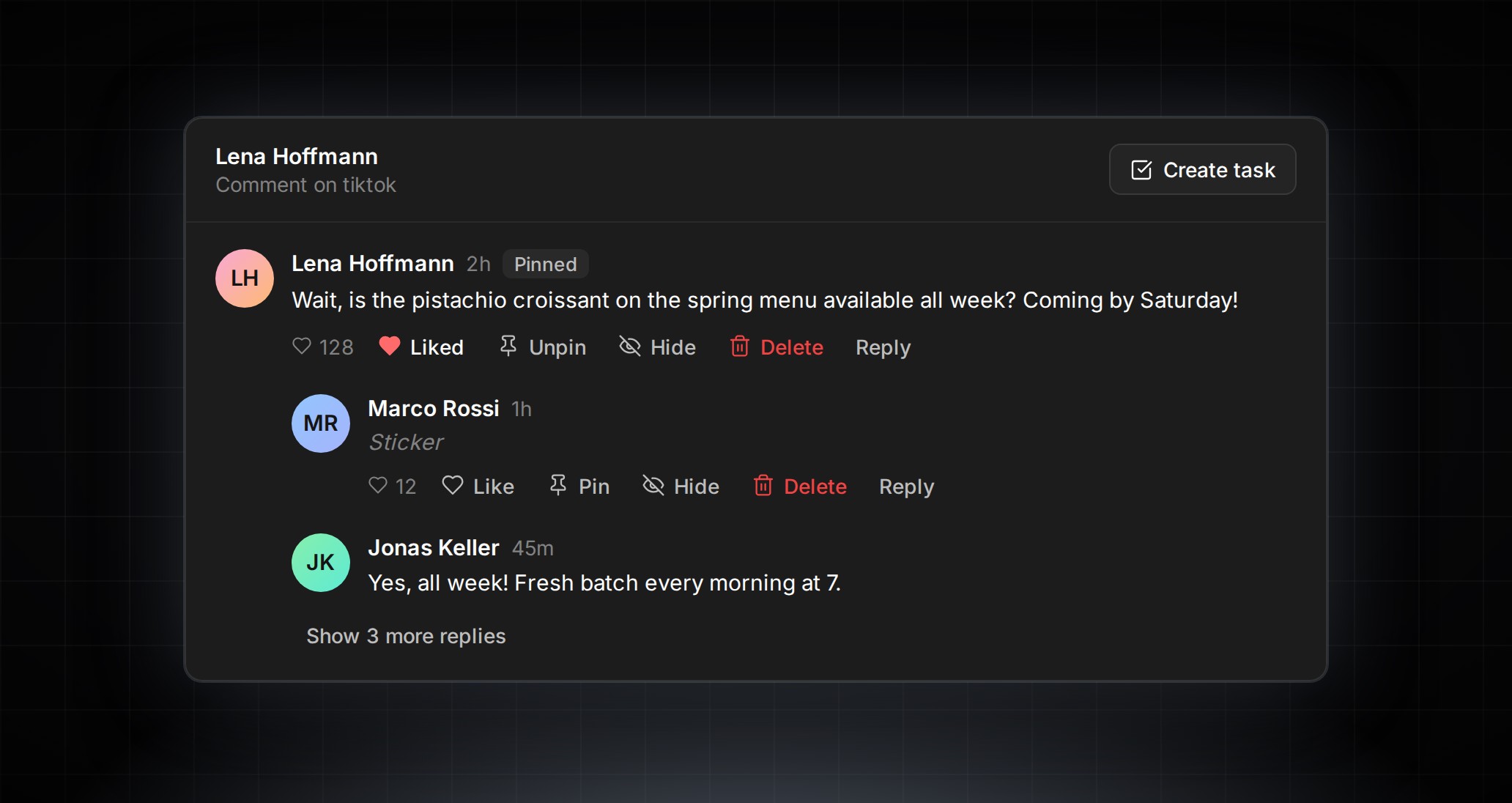
    See everything on your plate in one place. The new Tasks tab pulls together all your crew's to-dos with My Tasks and Team Tasks filters, plus Open and Completed sections. You can create standalone tasks without tying them to an idea, and a quick Tasks preview now appears on your home screen too.

  39. App

    Faster Task Creation With Smart Defaults

    Creating a task is now quicker — today's date and you as the assignee are filled in by default. The assignee picker is tucked into a tidy dropdown, and every task now needs a due date and an assignee so nothing slips through the cracks.

  40. App

    Always See Your Campaigns on Home

    Your home screen now always shows campaigns when you have them. If nothing is active, we'll show your recently ended campaigns or drafts instead, so you can pick up where you left off.

  41. App

    Tidier Crew List on Your Profile

    If you're part of lots of crews, your profile no longer pushes settings and other menu items off the screen. We show your first five crews by default, with a "Show all" toggle to expand the full list when you need it.

  42. Campaigns

    Larger Video Uploads for Campaign Contributors

    Contributors can now upload larger videos to campaigns, with the file size limit raised to 100MB. If an upload is too big, you'll see a clear message explaining what happened instead of a generic error.

  43. App

    New Profile Page on Desktop

    Click your avatar in the sidebar to open a dedicated profile page on desktop. Edit your name and photo inline, see all the crews you belong to grouped by role, and jump to settings, feedback, or sign out from one place.

  44. Ideas

    Plan Visuals With the New Storyboard View

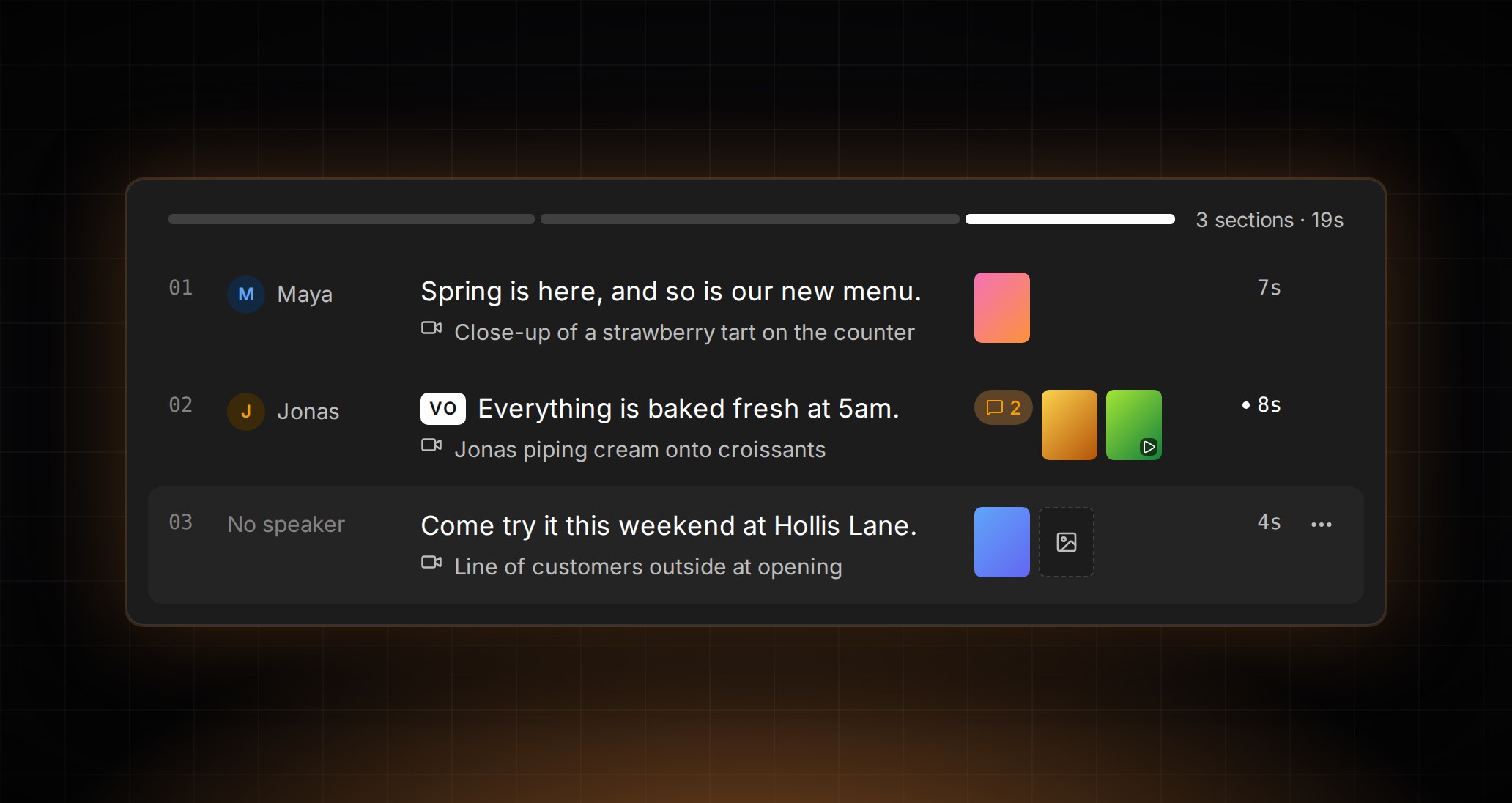
    Switch to the new Storyboard view in the Script editor to plan visuals alongside your script. Add b-roll notes, upload reference images for each section, and toggle back to the classic Script view anytime — your view choice is remembered across sessions.

  45. App

    Cleaner Crew Sidebar With Invite Codes

    Your crew sidebar now shows up to six members by default with a "Show all" toggle to see the rest. You'll also see active invite codes with their role and usage right below the members list, and a "Create new code" button to generate a new one in a tap.

  46. App

    Cleaner Card Layouts on the Web

    The three-dot options button on post cards and sheet rows now stays out of the way until you hover, giving your lists and boards a cleaner look on desktop. On mobile it stays visible as before, so it's always within reach.

  47. App

    Crew Members at a Glance in the Sidebar

    Admins and managers now see their crew members right alongside the Crew tab on desktop, with avatars, names, and role badges. Tap a member to quickly change their role.

  48. App

    Fixed Stray Back Button on Crew Screen

    Switching between Crew and Settings from the sidebar no longer leaves a stray back button on the Crew screen. Navigation now returns you cleanly to the top of Crew.

  49. App

    Easier-to-Read Text in Light and Dark Mode

    We tuned the text colors across the app for sharper contrast and clearer hierarchy. Headings, secondary text, and disabled labels are now easier to tell apart, whether you're working in light or dark mode.

  50. Campaigns

    Share Content With Reviewers and Contributors

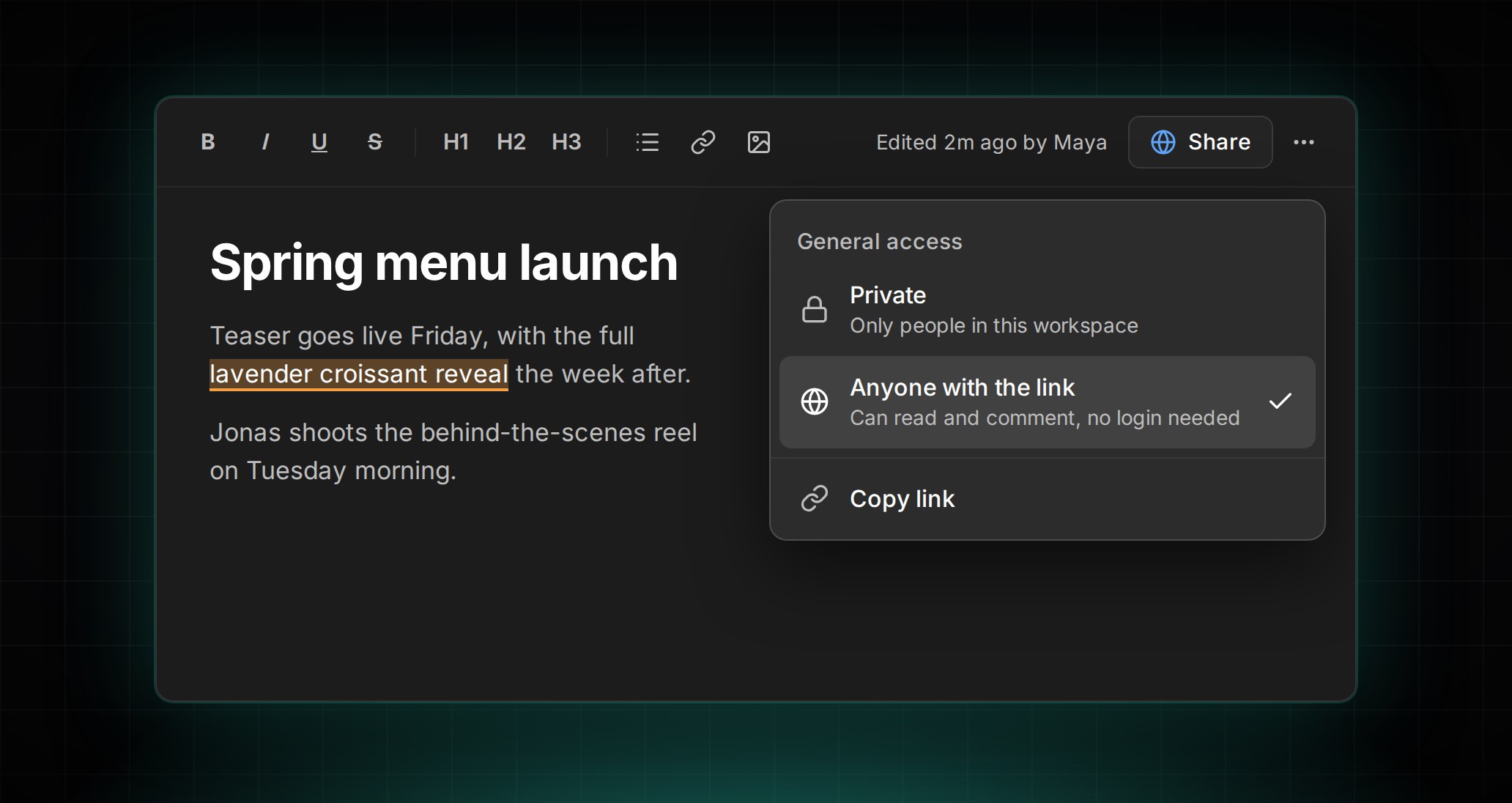
    Need feedback or media from someone outside your crew? Admins and managers can now create secure share links for any draft, post, campaign, or UGC media. Recipients can review, comment, approve or reject, and even upload content — no account needed — and links are time-limited so you stay in control.

  51. App

    Steadier Sidebar Navigation

    The Settings and Crew buttons in the sidebar now behave consistently. Tapping Settings while already on Settings keeps you put, and tapping Crew always takes you back to your crew.

  52. Campaigns

    Attach Brief Files to Campaigns

    Attach PDFs, slides, images, and other documents directly to your campaign briefs so contributors have everything they need in one place. Give each file a friendly display name, and your crew can download them right from the campaign page.

  53. App

    Resizable Sidebar on the Web

    Want more room for your content? Drag the edge of the sidebar to resize it, all the way down to icons only or back out to its full width. Double-click the edge to snap it back to the default, and your preferred size is remembered next time you open ContentCrew.

  54. Drafts

    Edge-to-Edge Draft Previews on Mobile

    Your draft videos and images now stretch all the way to the edges of your phone screen, so previews feel bigger and more immersive. The header, caption, and action buttons stay nicely aligned around them.

  55. Drafts

    Downloads Keep the Right File Type

    Downloads now keep the original file format, so images save as images and videos save as videos instead of all coming through as .mp4.

  56. App

    Fixed Crew Switcher on Web

    Switching crews on the web no longer leaves you staring at a blank screen. The crew selector now opens reliably and takes you to the right place every time.

  57. App

    A Fresh, Modern Look

    ContentCrew has a refreshed visual design inspired by modern apps like Notion and Linear. Expect cleaner colors, tighter typography with a clearer hierarchy, softer dark and light modes, and smoother hover effects across the app.

  58. App

    Clearer Upload Progress Across the App

    Uploading videos and images now shows a clear progress bar covering both compression and upload, so you always know how far along you are. Campaign brief uploads show progress for the first time, and you'll get a friendlier message if a file is too large.

  59. Drafts

    Smoother Draft Playback and Scrubbing

    Drafts now size correctly so videos no longer get clipped at the bottom, switching between reel and post drafts feels smoother without the header jumping, and you can scrub the video progress bar even when the draft overlay is showing.

  60. Campaigns

    Better Video Playback in Campaign Briefs

    Campaign brief videos now play with a properly aligned progress bar and display in the correct aspect ratio, so portrait and landscape clips look right every time.

  61. Ideas

    Browse Ideas in a List View

    A new Sheet view lets you see all your ideas laid out in a clean, scrollable list — making it easier to scan, compare, and pick what to work on next.

  62. Drafts

    Videos Load Faster and Play Smoother

    We rebuilt how videos are compressed and played back. Videos now compress significantly faster when uploading, and the player has a new progress bar you can scrub through. On mobile, videos play inline instead of taking over the whole screen.

  63. Campaigns

    Manage Campaign Visibility

    You can now control what content is visible to contributors and guests in your campaigns. Set who sees what — so the right people only see what's relevant to them.

  64. Ideas

    Task Checklists on Ideas

    Add tasks directly to your ideas to track what needs to get done before publishing. Check off items as you go and keep your workflow organized.

  65. Drafts

    New Commenting Layout

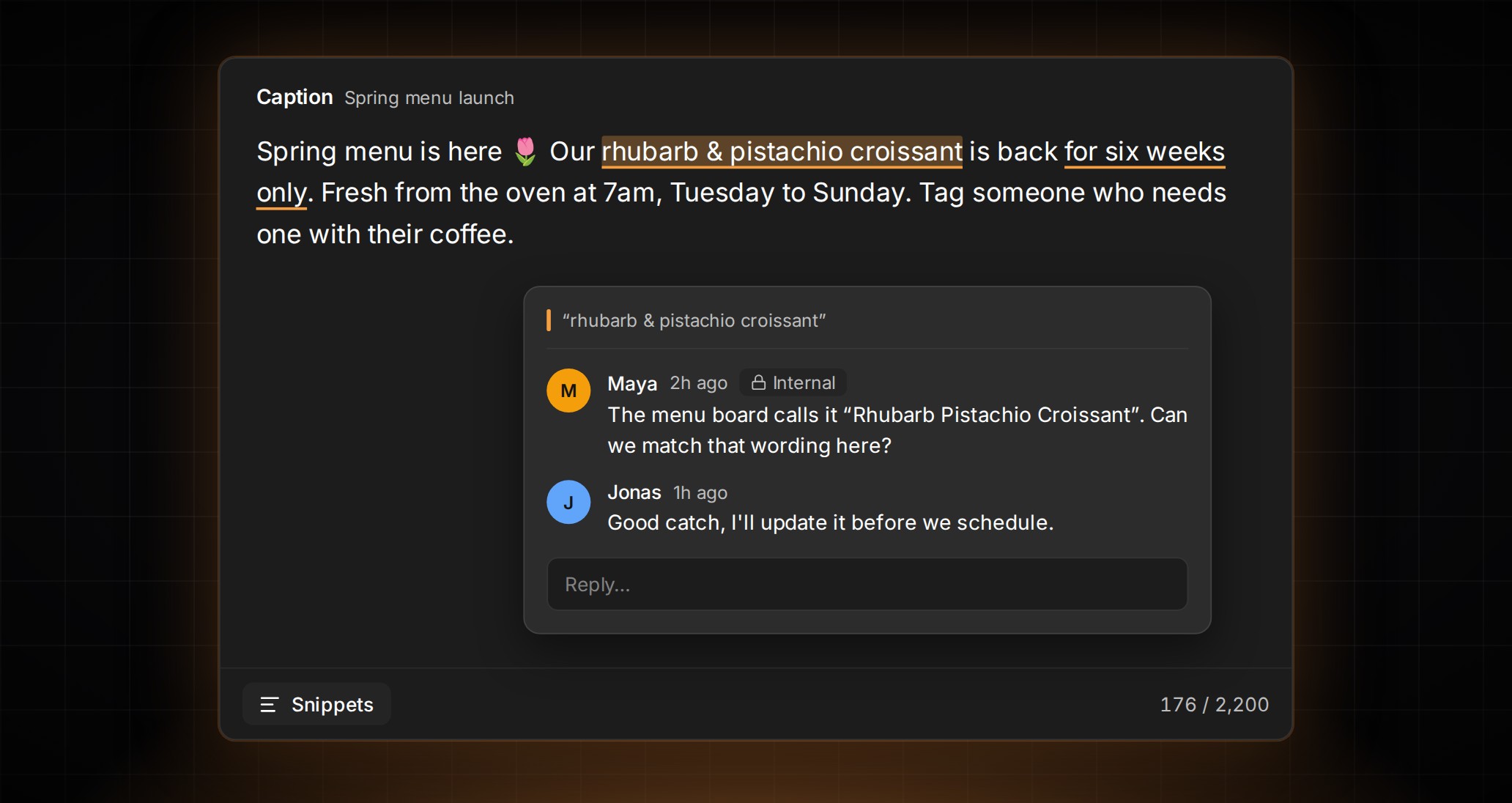
    On desktop, drafts show a comments sidebar so you can give feedback without opening a separate screen.

  66. Media

    Media Library

    Browse all your uploaded media in one place with the new Media Library page. Quickly find videos and images across your crew without digging through individual drafts.

  67. Campaigns

    Improved Campaigns

    Campaign details got a desktop sidebar with timeline and brief links, fullscreen video playback, and a download button. Admins and Managers can now see contributors and share invite codes right from the Campaigns page.

  68. App

    New Group Roles

    Group roles have been updated with a new Manager role and clearer naming. Managers can help run the group alongside Admins, while Contributor and Guest better describe member access levels.

  69. App

    Redesigned Home Screen

    The Home tab got a fresh layout that puts your most important content front and center. Quickly jump to ideas, drafts, or your pipeline board right from the main screen.

  70. App

    Smoother Navigation Throughout the App

    We restructured how screens are organized behind the scenes, which means fewer loading hiccups and faster transitions as you move between tabs and screens.

  71. App

    Roadmap: See What's Coming Next

    Check out the new Roadmap screen to see what features are planned, in progress, and recently shipped. You can also suggest ideas and vote on what matters most to your workflow.

  72. App

    Choose Your Crew Type: Team or Agency

    Crews can now be set as either a Team (internal content team) or an Agency (working with external clients). This helps ContentCrew fit the way you actually work.

  73. Ideas

    Your Board Stays Up to Date

    When you create or edit an idea, your pipeline board now updates instantly — no need to refresh or navigate away and come back.

  74. Ideas

    Better Script Writing Experience

    Planning a video? The Script Editor just got easier to use. Set a target duration for your script, drag sections to reorder them, and enjoy a smoother writing flow overall.

  75. Ideas

    Cleaner Pipeline Board

    Idea cards on your pipeline board are now simpler and easier to scan. You'll see just the title, description, and a quick-actions menu — less clutter, more focus.

  76. Drafts

    Better Video Uploads

    When you upload a draft, ContentCrew now saves two versions: a lightweight one for quick previewing in the app, and the full-quality original for downloading and publishing. You'll also see a progress bar so you know exactly where your upload stands.

  77. App

    Easier Navigation on Desktop

    If you use ContentCrew on a computer, the sidebar is now easier to navigate. Settings and your profile are always visible, and switching between crews is right at the top.

  78. Ideas

    Redesigned Script Editor

    The Script Editor has a brand new document-style layout that feels more natural to write in. You can add, remove, and rearrange sections freely, change section types on the fly, and copy your entire script to paste into other tools.

  79. Publishing

    Simpler Posting Frequency Setting

    Setting how often you want to post is now done with a simple stepper (+/−) instead of tiles. Faster and more intuitive.

  80. Drafts

    Download Your Drafts

    Need to save a draft to your device? There's now a Download button right in the draft actions. Great for sending content to clients or uploading to other platforms.

  81. Campaigns

    Clearer Campaign Setup

    Creating a campaign is now more straightforward. Fields are labeled more clearly — "Campaign title" and "Mission & Objectives" — so you know exactly what to fill in.

  82. Ideas

    Pipeline Columns in Order

    Your Kanban columns now read left-to-right: Idea, Draft, Review, Ready. This matches the natural flow of content creation.

  83. Ideas

    Production Checklist

    Each idea now has a production checklist so you can track everything that needs to happen before a piece of content is ready to go live. No more forgetting steps.

  84. Ideas

    Kanban Board for Your Content Pipeline

    See all your ideas organized in a visual board with columns for each stage: Idea, Draft, Review, and Ready. Switch between the board view and a list view anytime.

  85. Ideas

    Approval Workflow

    Content now has a proper approval flow. Creators can request approval, and once approved, the idea gets an "Add to Calendar" button. Everyone can see what's been approved and what's still in review.

  86. Ideas

    Link Drafts to Ideas

    You can now connect your video drafts directly to ideas. This keeps everything organized — when you open an idea, you'll see the latest draft thumbnail right there.

  87. Ideas

    Script Editor

    Plan your videos directly in ContentCrew with the new Script Editor. Write structured scripts broken into sections, and see a preview right on the idea card.

  88. App

    Use ContentCrew on Your Computer

    ContentCrew now works in your web browser and can be installed as an app on your desktop. On larger screens you'll get a sidebar navigation, side-by-side chat, two-column ideas layout, and a calendar view for upcoming content.

  89. Campaigns

    Campaign Dates & Multiple Links

    Campaigns now support start and end dates so you can plan time-bound pushes. You can also attach multiple reference links and edit campaigns after they've been created. Plus, tag your ideas with channels like Instagram or TikTok.

  90. Campaigns

    Contributor Role

    Working with external content creators? You can now invite them as Contributors. They get a dedicated upload experience and their own chat channel with your team — but they're kept separate from your internal crew.

  91. App

    Your Content is More Secure

    All uploaded media (profile pictures, chat images, drafts, post images) is now stored privately. Only people with access to your crew can view the content.

  92. Campaigns

    Campaigns

    Organize your content around campaigns — briefs with objectives that your whole crew can rally around. Attach videos, images, and reference materials. Perfect for product launches, seasonal pushes, or client projects.

  93. Insights

    Instagram Insights

    Connect your Instagram account and see your performance right inside ContentCrew. Track reach, interactions, and follower changes with trend indicators. Tap into any post to see detailed stats and charts.

  94. App

    Redesigned Crew Settings

    Crew settings moved to a full settings page. Update your crew image, manage topics (add, edit, or remove them), and configure your crew — all in one place.

  95. App

    Activity Feed

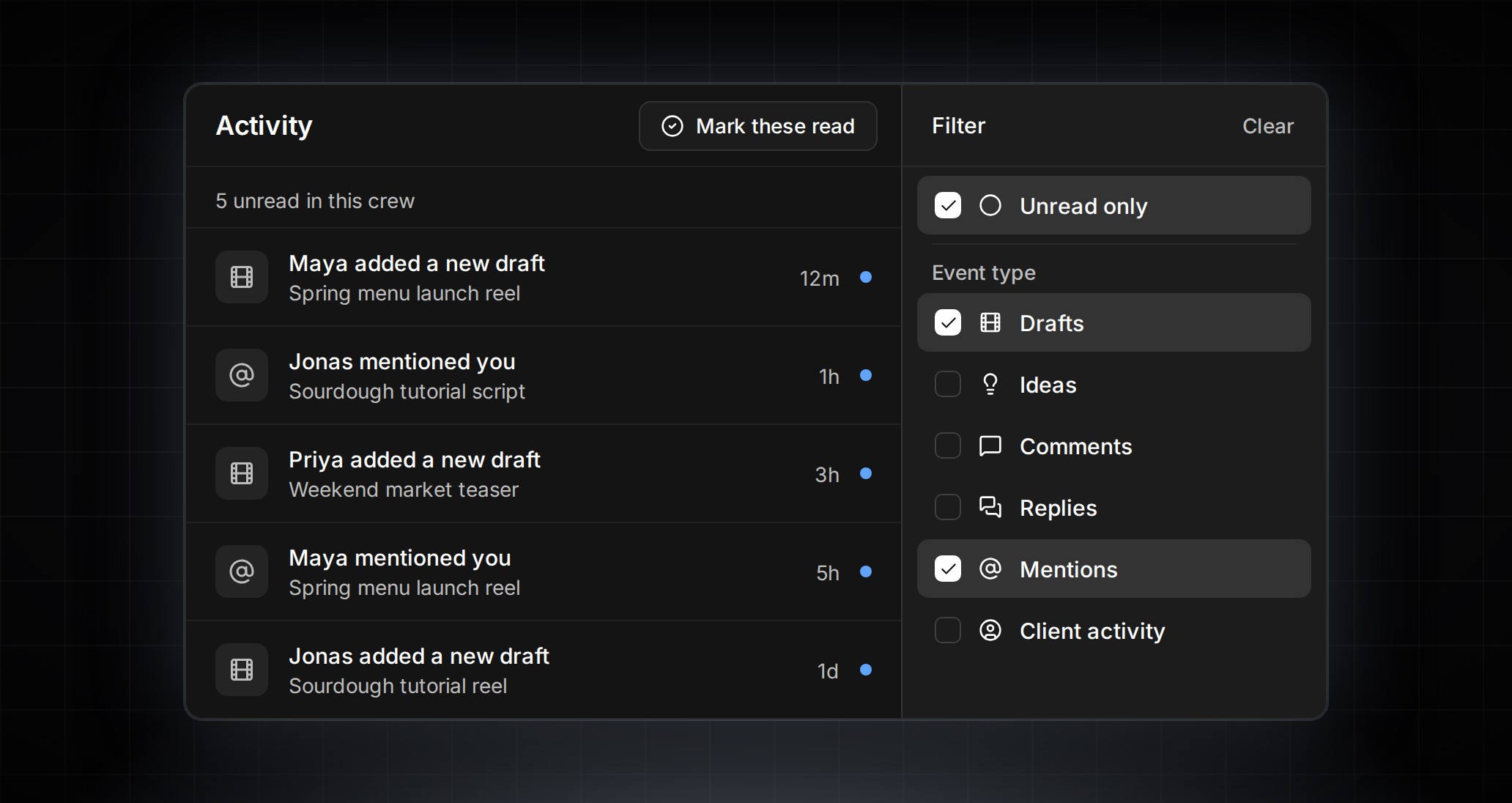
    Stay in the loop with the Activity feed. See when someone posts a new draft, shares an idea, or makes updates — all in one scrollable timeline with thumbnails.

  96. App

    Manage Your Crew Members

    Admins can now see a full member list and promote or demote other members to admin. This makes it easy to share management responsibilities as your team grows.

  97. Publishing

    Content Calendar

    Plan when your content goes live with the Upcoming view. Set your posting cadence, schedule ideas to specific dates, and see everything laid out week-by-week with slot counts showing how many posts you still need to fill.

  98. App

    Fresh New Look

    Profile pictures and crew avatars are now visible throughout the app. The overall design shifted to a clean, neutral color palette with better layouts for the feed, headers, and menus.

  99. App

    Push Notifications

    Never miss a beat — get notified on your phone when someone posts a new draft or shares content with your crew.

  100. App

    Groups Are Now "Crews"

    We renamed Groups to Crews everywhere in the app. It better reflects the collaborative, creative nature of your team.

  101. App

    Share Photos & React in Chat

    Chat just got a lot more useful. Send photos directly in conversations, react to messages, and create your own group chats to discuss specific topics with select crew members.

  102. App

    Like Comments

    Show agreement with a quick like on any comment. A faster way to give feedback without writing a full reply.

  103. Ideas

    Add Reference Links to Ideas

    Attach links to your ideas — inspiration articles, competitor examples, mood boards, or brand guidelines. Everything your crew needs to understand the vision, right alongside the idea.

  104. App

    Block & Report

    If someone's being disruptive, you can now block users or flag inappropriate content. Blocked people are hidden from your view across the entire app, including chat.

  105. Drafts

    Carousel Drafts

    Posting a carousel? Drafts now support multiple images and videos in a single upload. Perfect for multi-slide Instagram posts.

  106. Ideas

    Dedicated Idea View

    Tap on any idea to open a full detail page with everything in one place: the caption, comments, crew ratings, AI score, linked drafts, and reference links.

  107. AI

    Rate Ideas & Get AI Feedback

    Your crew can now rate ideas to help surface the best content. Even better — ContentCrew's AI automatically scores your ideas and gives you feedback to improve them before you start creating.

  108. Drafts

    Rate Drafts Too

    Rating isn't just for ideas. Your crew can also rate video drafts, helping you decide which takes to publish and which need another round.

  109. Ideas

    Filter Your Ideas

    Find what you're looking for faster with idea filters. Filter by topic, rating status, and more. One tap clears all filters when you're done.

  110. App

    Dark Mode

    ContentCrew now supports dark mode. The app follows your phone's setting automatically — easier on the eyes when you're planning content late at night.

  111. App

    Admin & Member Roles

    Your crew now has roles. Admins can manage settings, topics, and see everything. Members get a focused view of just their crew's content.

  112. App

    Edit After Posting

    Made a typo? Changed your mind on the caption? You can now edit your ideas and drafts after posting them. Changes show up immediately.

  113. App

    Archive Instead of Delete

    Not ready to delete an idea or draft? Archive it instead. It's moved out of your active feed but saved for later if you change your mind.

  114. App

    Welcome Screen for New Users

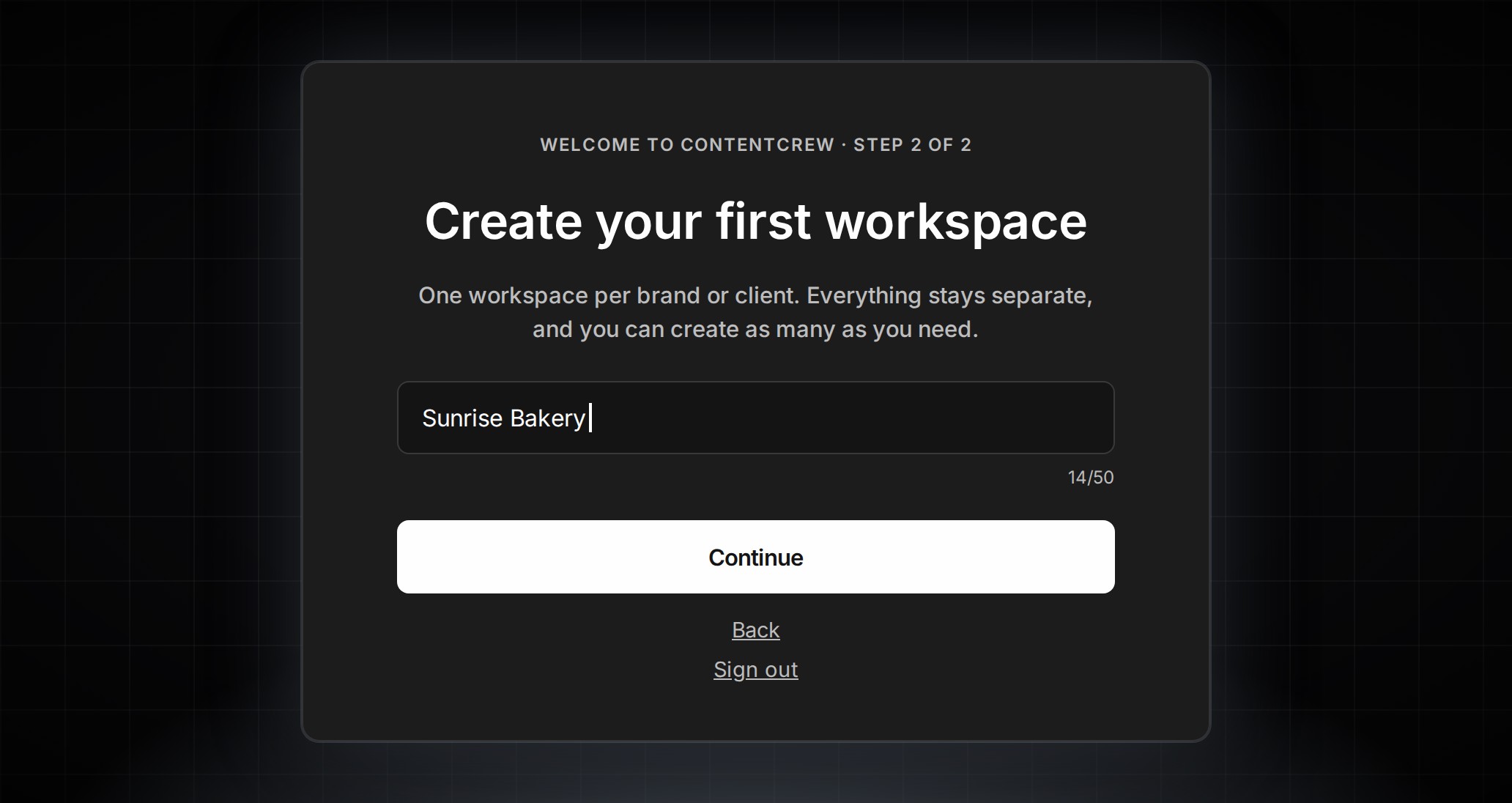
    First time in ContentCrew? A friendly welcome screen guides you to either create a new crew or join an existing one with an invite code.

  115. Drafts

    Full-Screen Video Drafts

    Browse video drafts in a full-screen vertical feed — just like scrolling through Reels or TikTok. Videos auto-play with sound as you swipe through.

  116. App

    Organize with Topics

    Keep your content organized by topic. Create categories like "Product launches," "Behind the scenes," or "Tutorials," then tag your ideas and drafts. Filter by topic to find what you need fast.

  117. App

    Like Ideas & Drafts

    Quickly show love for content with the like button on ideas and drafts. Likes appear instantly.

  118. App

    Threaded Comments

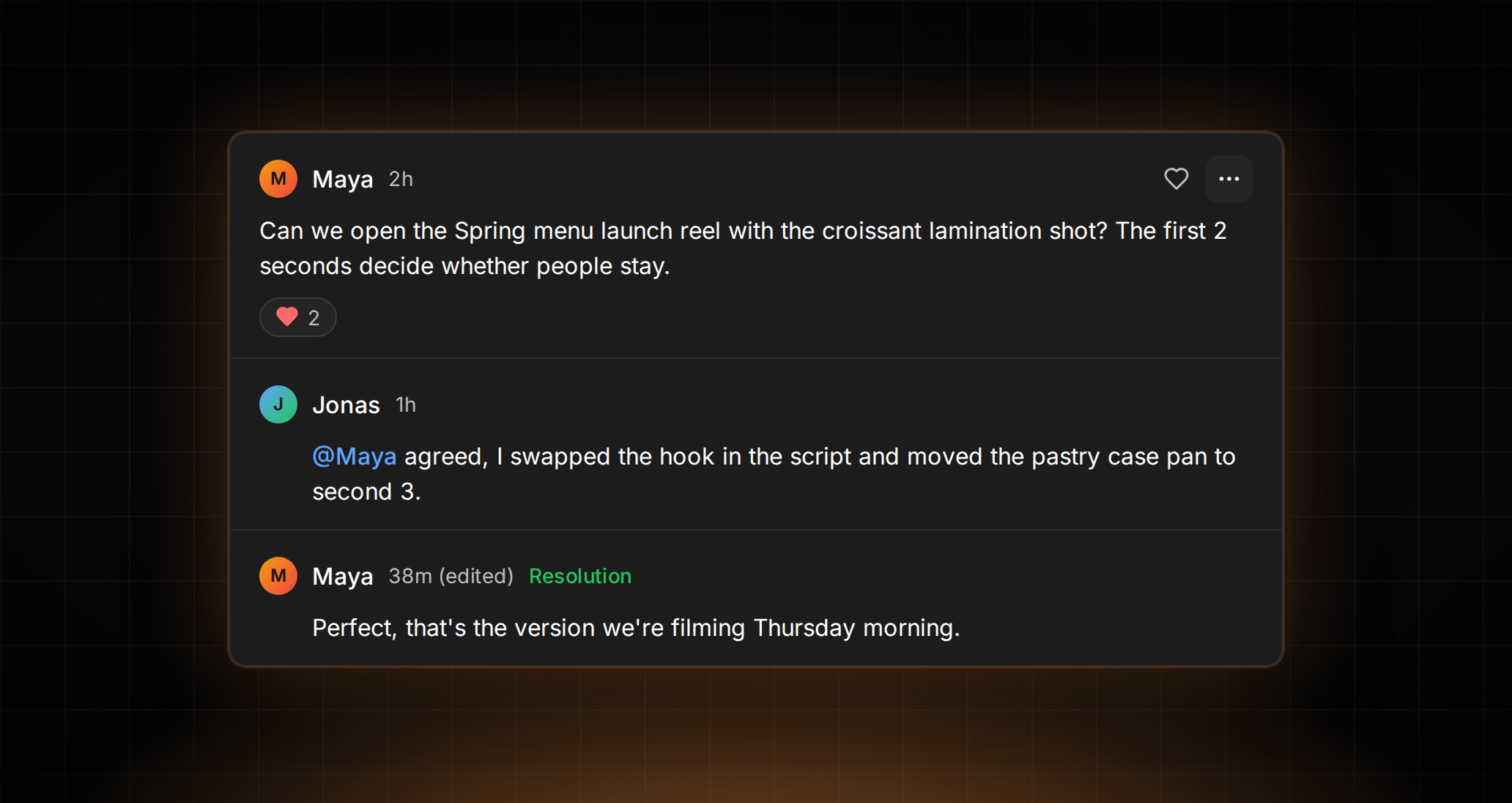
    Comments now support replies, so conversations stay organized. Reply directly to a specific comment instead of everything piling up in one flat list.

  119. App

    Built-in Team Chat

    Every crew now has built-in chat. When you join a crew, 1-on-1 conversations are automatically created with each member so you can start collaborating right away.

Terms of Service Privacy Policy Contact Us